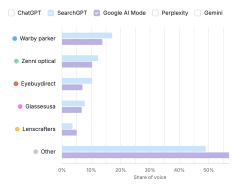
AI-powered search is changing how customers discover products online. Major platforms like ChatGPT, Gemini, and other AI chatbots now crawl websites to power their recommendations and answers. If your Shopify store blocks these crawlers, you’re missing out on valuable visibility.
This guide walks you through configuring your robots txt file to explicitly allow AI crawlers while maintaining control over your site’s accessibility.
Why Whitelist AI Crawlers?
Unlike traditional search engines, AI chatbots use different user agents to access your content. By default, some Shopify configurations may inadvertently block these crawlers. Whitelisting ensures your products and content appear in AI-generated recommendations and searches.
| AI Crawler | User Agent | Purpose |
|---|---|---|
| GPTBot | GPTBot | Powers OpenAI products (ChatGPT) |
| Google-Extended | Google-Extended | Supports Gemini AI |
| CCBot | CCBot | Common Crawl data collection |
| Claude-Web | Claude-Web | Anthropic’s Claude AI |
Understanding Shopify’s robots.txt Limitations
Shopify doesn’t allow direct editing of your robots meta tag or core robots.txt file from the theme editor. However, you can use the robots.txt.liquid template to add custom rules that supplement Shopify’s default configuration.
Important: The robots.txt.liquid file adds rules to Shopify’s existing robots.txt. It doesn’t replace it entirely. Always test your changes using Shopify Search Console integration.
Step-by-Step Implementation
Step 1: Access Your Theme Code
- Log into your Shopify Admin panel
- Navigate to Online Store > Themes
- Click the three-dot menu (•••) next to your active theme
- Select Edit Code from the dropdown
Step 2: Create or Edit robots.txt.liquid
In the file navigator, locate the Templates folder. If a robots.txt.liquid file exists, click it. Otherwise:
- Click Add a new template
- Select robots.txt from the template type dropdown
- This creates
robots.txt.liquidin your Templates folder
Step 3: Add AI Crawler Whitelisting Rules
Access the code snippet on GitHub and copy the complete template. This snippet includes explicit Allow directives for major AI crawlers while respecting your existing Shopify sitemap structure.
Paste the code into your robots.txt.liquid file, replacing any existing content.
Caution: If you’ve previously customized this file (for example, to handle noindex tagged collections or noindex tagged blog posts), merge the new AI whitelisting rules with your existing customizations rather than replacing everything.
Step 4: Save and Verify
Click Save in the top-right corner. Your changes take effect immediately. Visit yourstore.myshopify.com/robots.txt to confirm the new rules appear correctly.
Best Practices for AI Crawler Management
Be Specific with Allow Rules: Instead of broad wildcards, explicitly list AI user agents you want to allow. This prevents unintended access while maintaining granular control.
Avoid Conflicting Directives: If you use Disallow: / for certain user agents, ensure your AI whitelisting rules appear after and override those restrictions.
Monitor Crawl Activity: Use your analytics and server logs to track which AI crawlers are accessing your store and adjust permissions accordingly.
Regular Audits: AI platforms frequently update their crawler user agents. Review and update your robots.txt quarterly to maintain optimal visibility.
Common Mistakes to Avoid
Many store owners accidentally block AI crawlers by using overly restrictive wildcard rules. The directive Disallow: / blocks everything for all user agents unless you explicitly allow specific crawlers afterward.
Another common issue involves misconfigured Liquid syntax in the template file. Always validate your code before saving to prevent breaking your entire robots.txt file.
Related Guides
Robots txt Configuration
Master the fundamentals of robots.txt for complete crawler control.
Read Guide →Robots Meta Tag Optimization
Learn page-level crawler directives using meta robots tags.
Read Guide →Shopify Search Console Setup
Connect and verify your store with Google Search Console.
Read Guide →Shopify Sitemap Configuration
Optimize your XML sitemap for better crawler discovery.
Read Guide →Noindex Tagged Collections
Prevent duplicate content issues with proper noindex implementation.
Read Guide →Noindex Tagged Blog Posts
Manage blog tag archives to avoid search engine penalties.
Read Guide →Shopify store traffic stuck? You're not alone.
We help Shopify stores rank higher in Google, attract quality traffic, and turn visitors into customers.
🚀 Trusted by 500+ Shopify merchants